
The short version
- Extract the download (right-click →
Extract All) to get the
ai-scapes-extensionfolder. - Open Chrome's extensions page and turn on Developer mode (top-right).
- Click Load unpacked and select that folder.
- Open the card's Details and turn on Allow in Incognito.
- Switch to the consent tab that opened, agree, sign in, and click Start study.
New to Chrome extensions? The full walkthrough with screenshots is below.
What you need
- A PC running Windows 10 or Windows 11.
- Google Chrome: download here if you don't have it.
- A Google account you are willing to sign into.
- The extension
.zip: download it here if you haven't yet. - About 10–15 minutes.
1. Unzip the extension
-
Open File Explorer (Win+E) and
go to wherever you saved
ai-scapes-extension.zip(usuallyDownloads). -
Right-click the zip and choose Extract All… Pick a
stable destination such as
C:\Users\<you>\Documents\ai-scapes-extension, then click Extract. -
Open the extracted folder and confirm
manifest.jsonis directly inside. If it's one level deeper, use that inner folder for the next step.
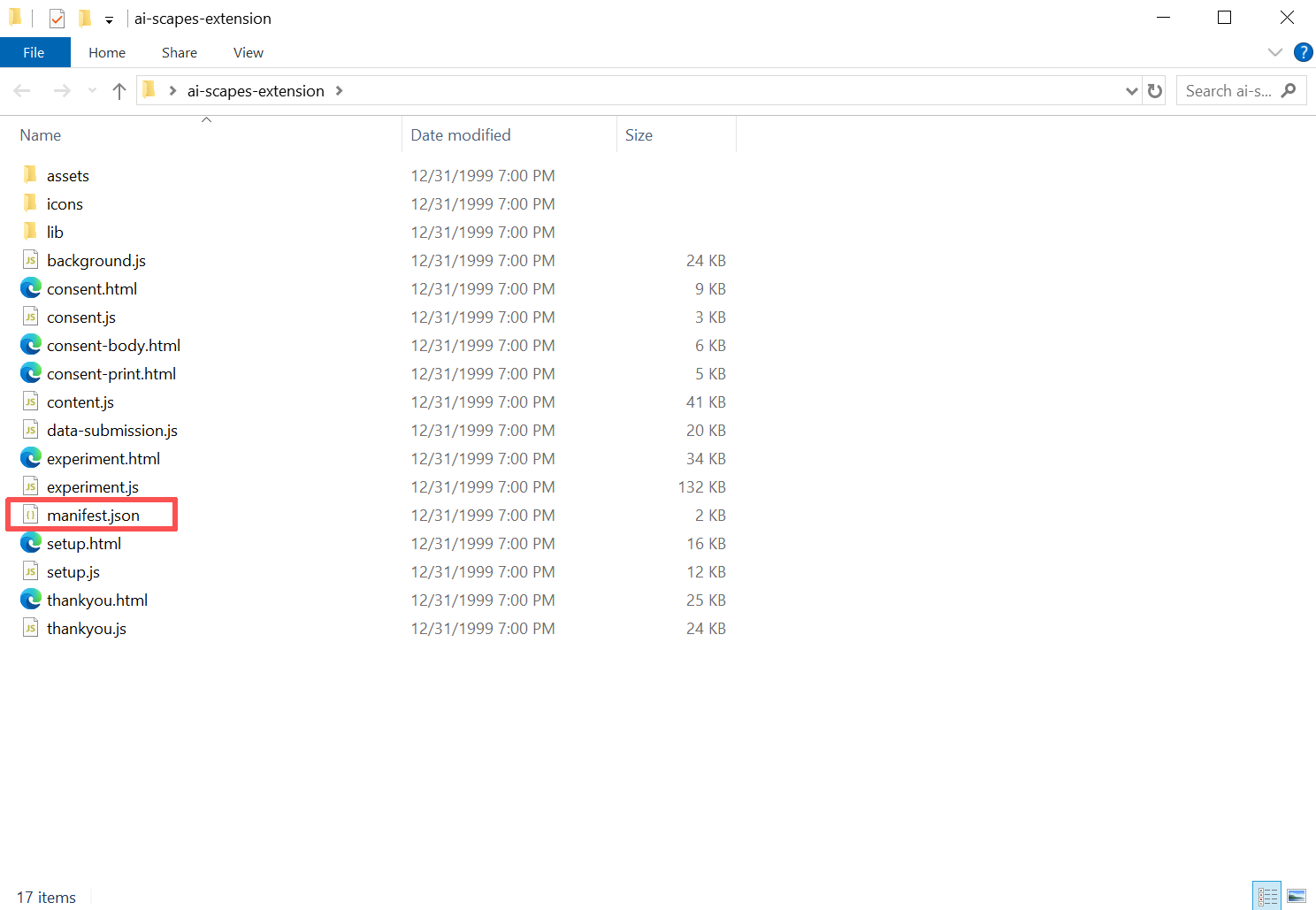
manifest.json is at the top.2. Open Chrome's extensions page
- Open Google Chrome.
- Go to the extensions page. Copy the address below, paste it into Chrome's address bar, and press Enter.
- Turn on Developer mode using the toggle in the top-right corner.
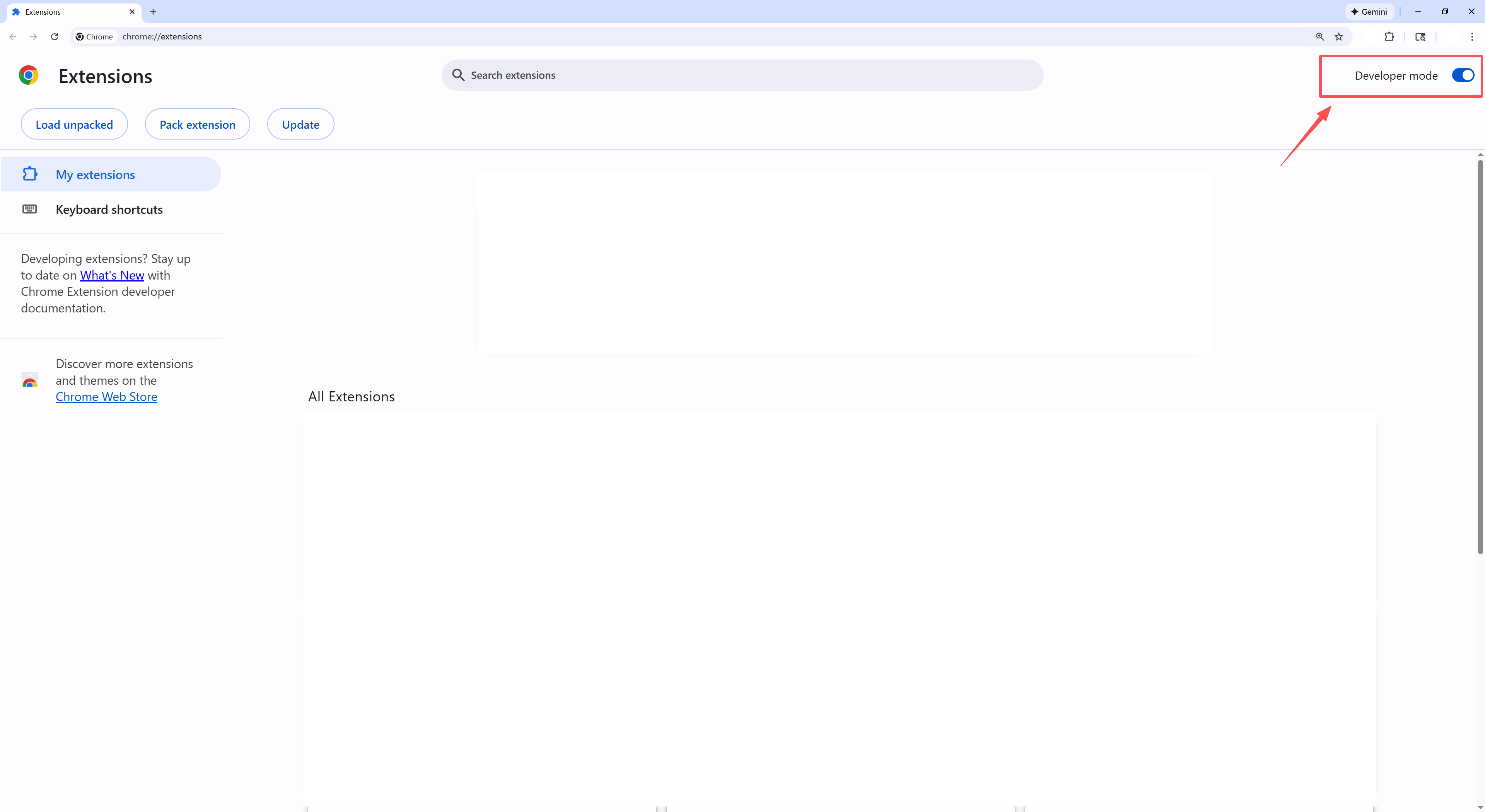
chrome://extensions).3. Load the unpacked extension
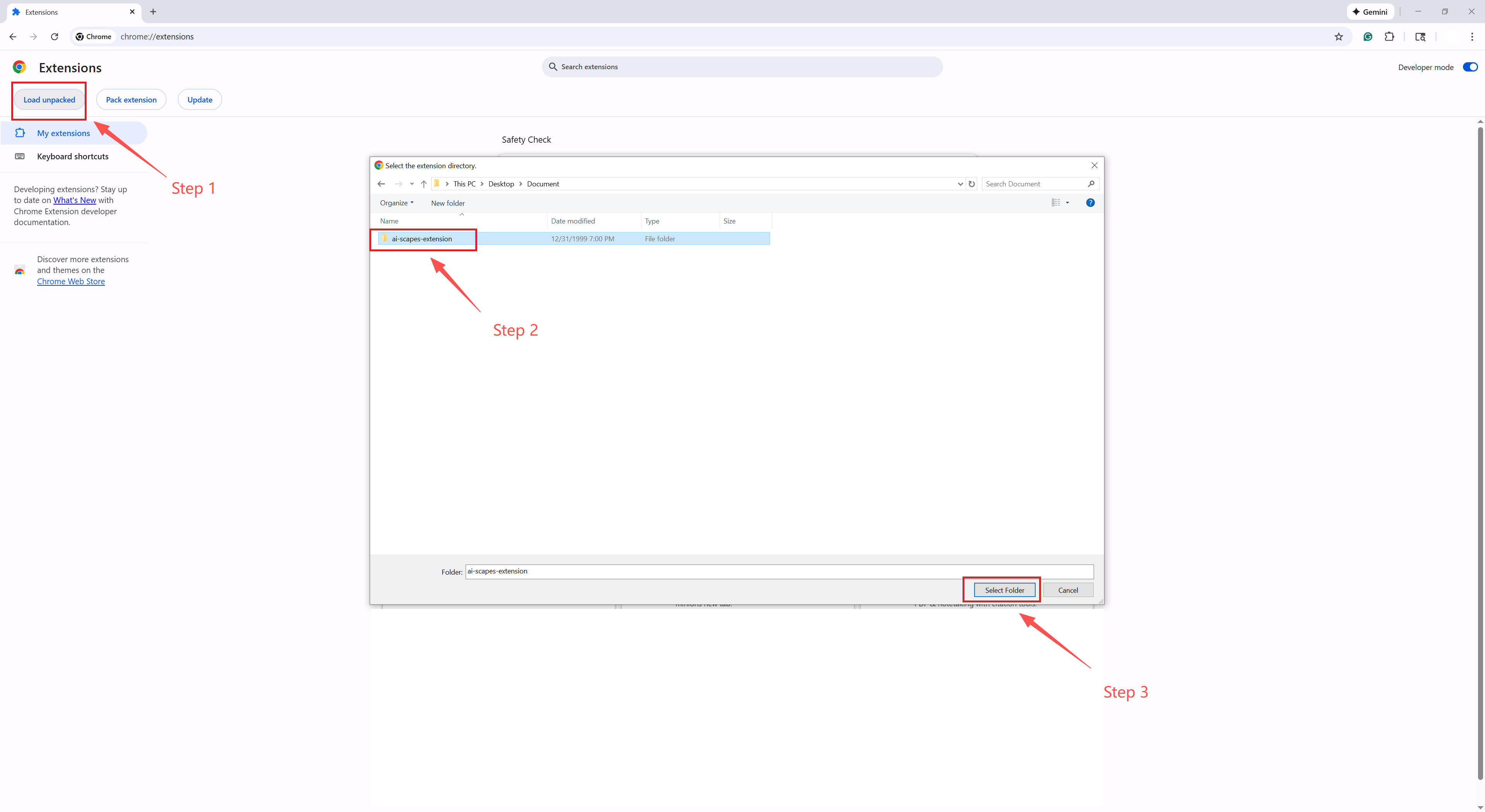
- Click Load unpacked (top-left of the page).
-
Select the folder you extracted in step 1 (e.g.
C:\Users\<you>\Documents\ai-scapes-extension), then click Select Folder. -
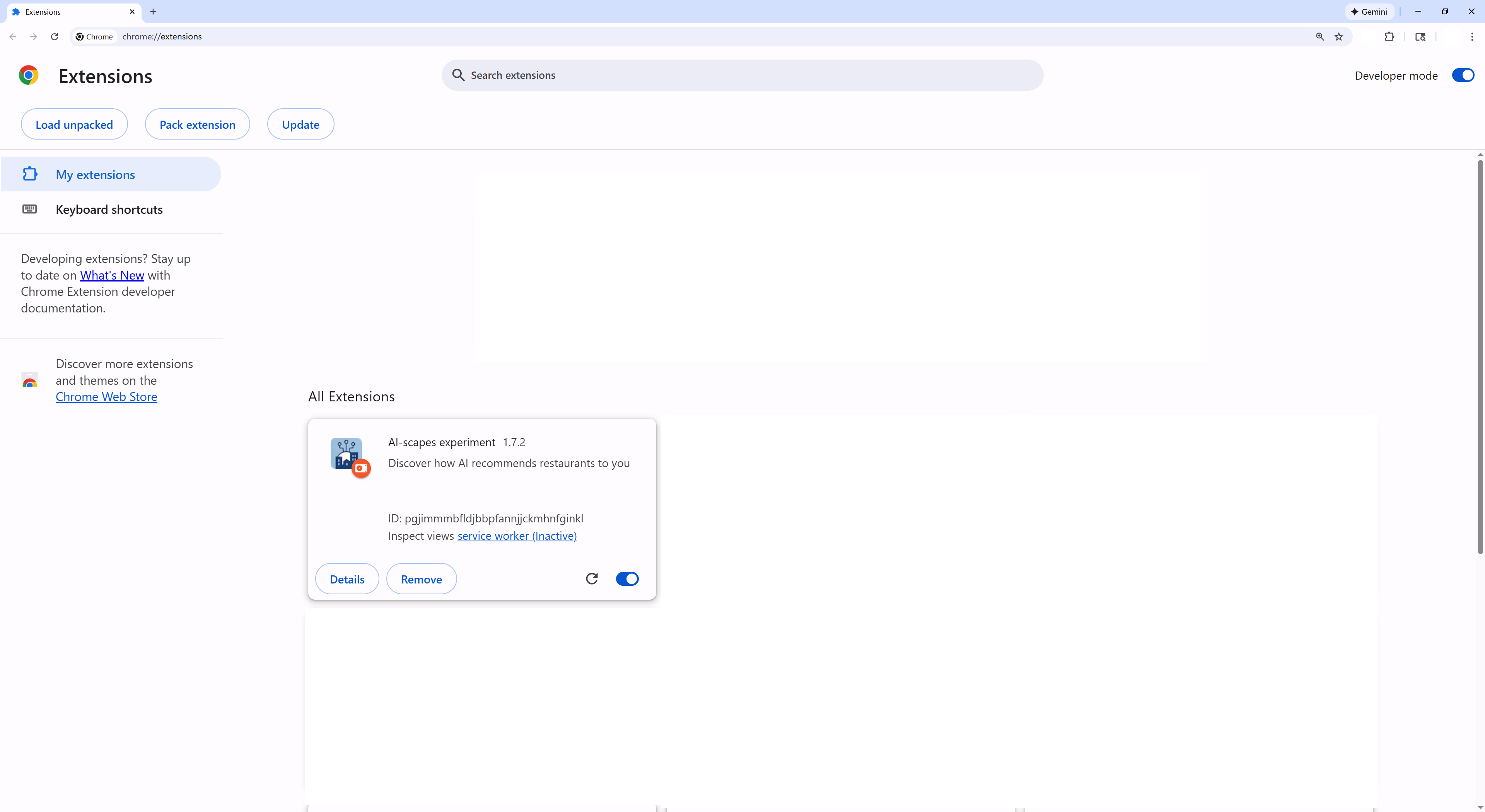
The AI-scapes experiment card appears. If a red error
about
manifest.jsonshows, you picked the outer folder — go one level deeper and re-select.
4. Allow the extension in Incognito
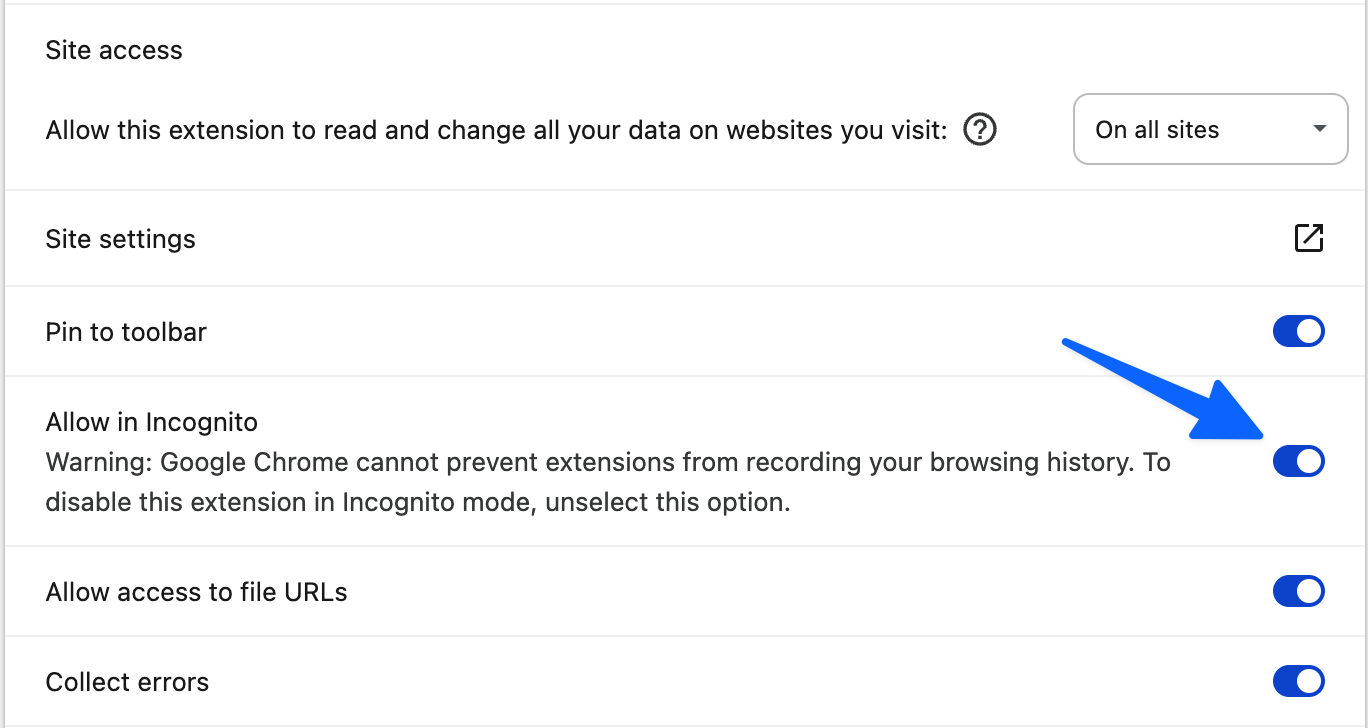
- Click Details on the AI-scapes card.
- Turn on Allow in Incognito (scroll down to find it).
5. Start the study
A consent tab opened automatically when you loaded the extension in step 3. Switch to it and work through three quick screens:
- Consent page: tick the eligibility box, then click I Agree.
- Setup page: sign into Google if you aren't already, then click Start Experiment.
- Experiment page: answer the three-question questionnaire, then click Start study.
The extension opens 18 small Maps windows in two waves (9 signed-in, then 9 incognito). Each auto-scrolls, collects its restaurant list, and closes itself. The run takes about 2–3 minutes.
.zip we
ship contains the readable files Chrome loads; it isn't signed because
Chrome only signs extensions distributed via the Chrome Web Store. If
your IT policy blocks unpacked extensions, contact the lab so we can
arrange an alternative.
Troubleshooting
"Manifest file is missing or unreadable"
Chrome could not find manifest.json at the top of the
folder you selected. Open the folder in File Explorer, look for
manifest.json, and re-pick exactly that folder.
"This extension may have been corrupted"
Re-download the zip and extract it again; partial downloads can cause this. If it persists, switch off your antivirus's "scan extensions" feature temporarily.